


SST Alert Update

Last updated: May 13, 2026
123
views

The following instructions will update the SST alert for the student. The alert is based on a student program and it is date driven; allowing it to no longer show after it expires with a given exit date.
Alert Icon: 
Enter an SST program record:
- Go to the student record
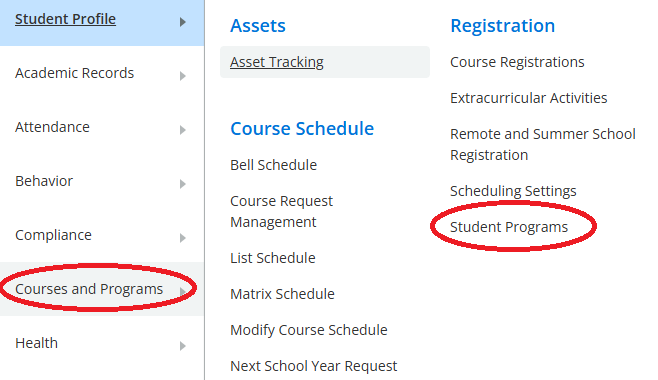
- Click on Course and Programs > Student Programs
- Click the New button
- Provide the Entry Date and the Exit Date for the SST program
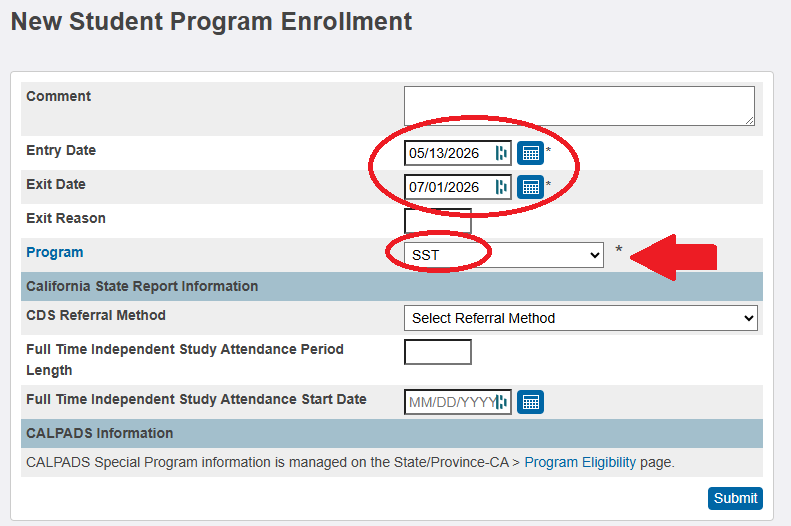
- Provide SST as the Program
- Click Submit
The alert will show as if the current date falls within the program dates. To end or remove the alert, you may go back to the programs page and either enter a date for the Exit Date if it is blank, or update it to date before today's date.

