


 2
2
Greetings,
Here are the necessary instructions for adding comments into the comment bank.
Upon entering the teacher portal. Navigate to Power Teacher Pro.
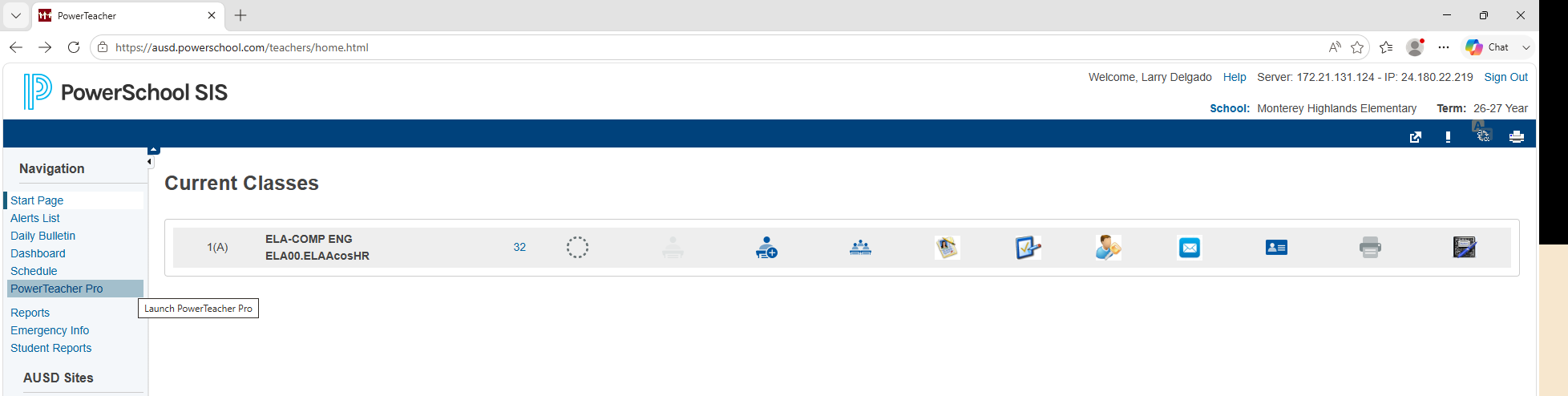
Here you will select your class on the top drop down.
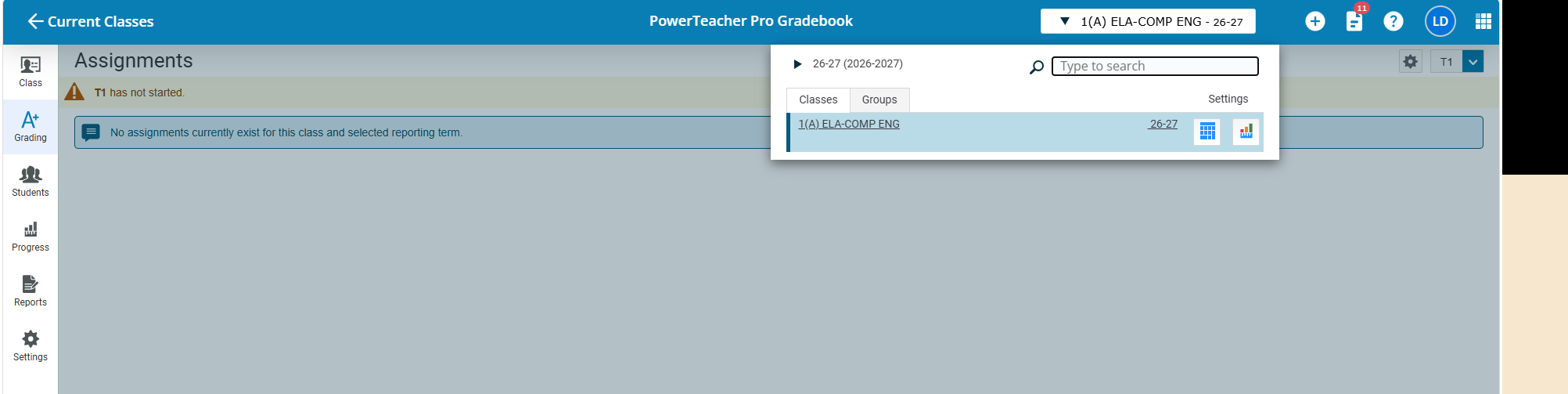
Ensure as well on the top right drop down by the wheel icon you are in the recent trimester as well.
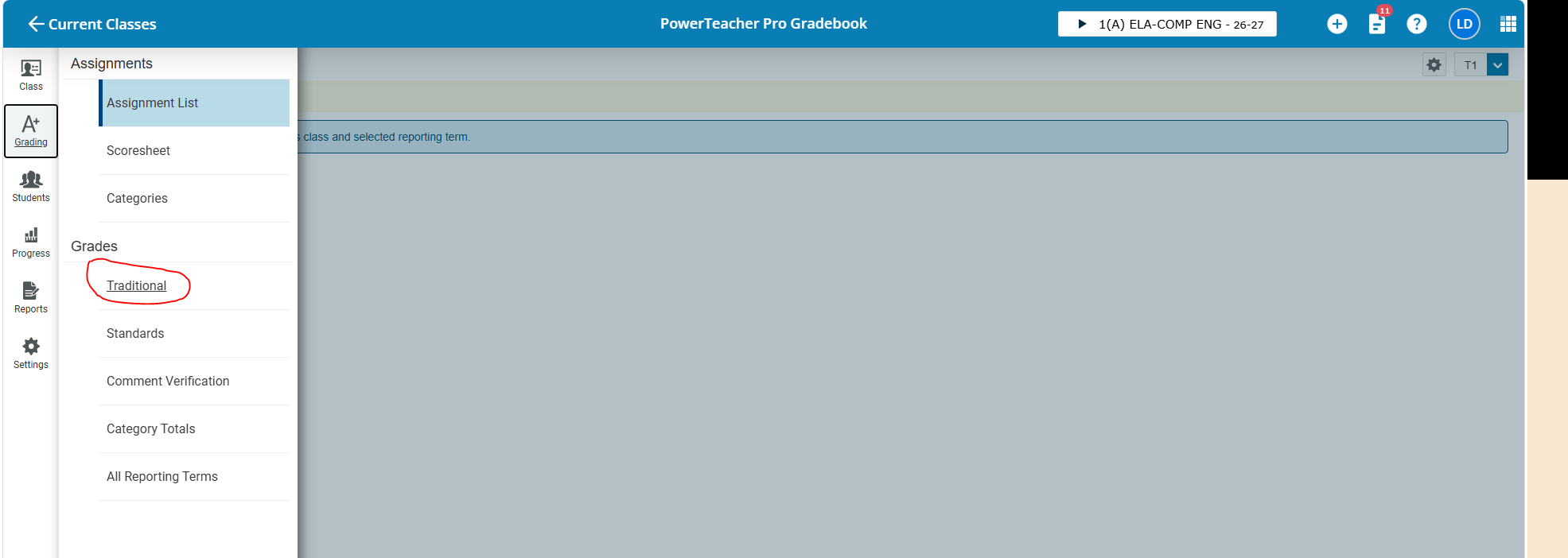
Next you click Grading on the left panel
and you will click Traditional inside the open panel.
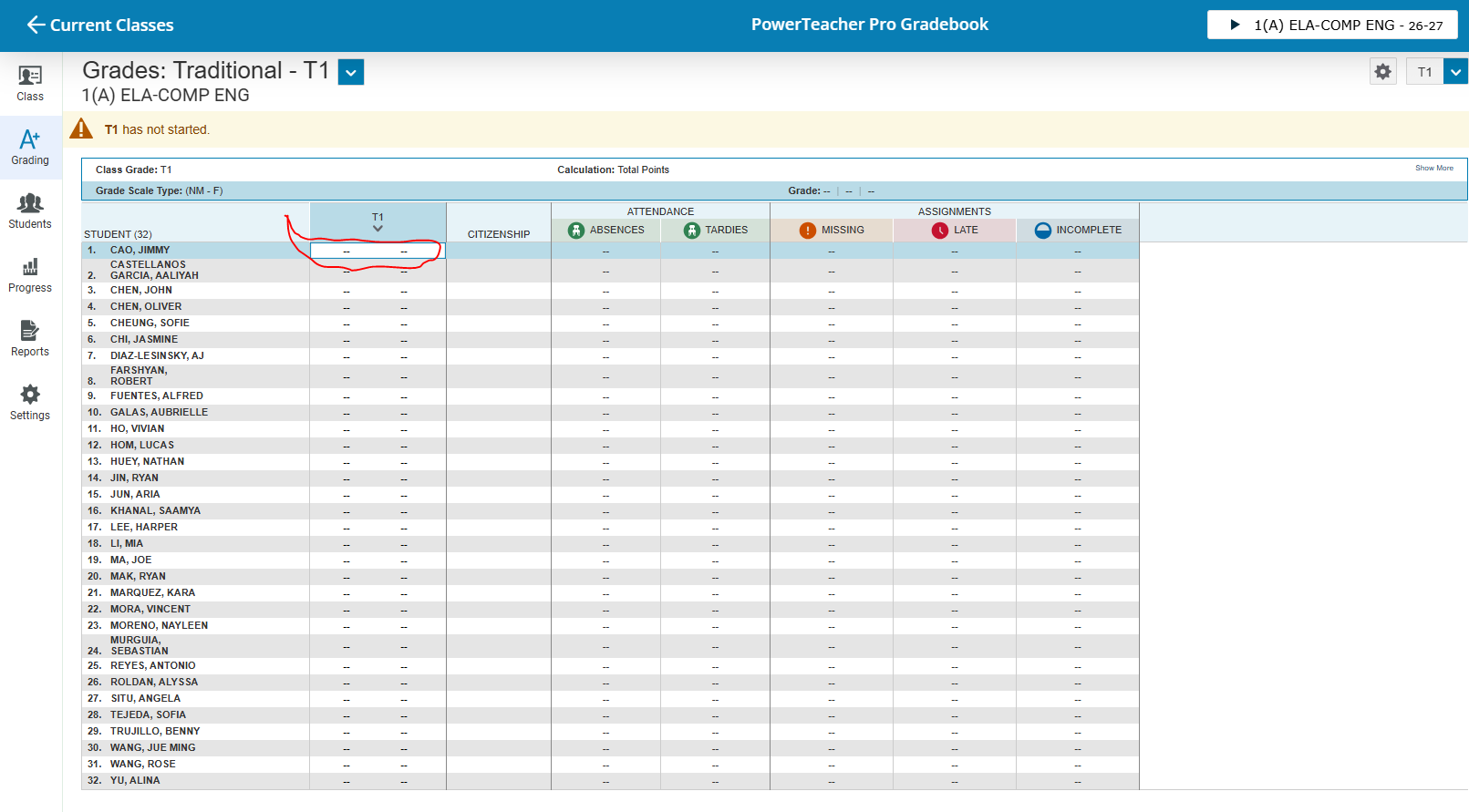
Here you will see the grading table. You need to click under the second column a student's grade box. This will open up a window.
Once the window opens it will appear on the right side. You will see an icon with a dialog. Click that to open the comments window.
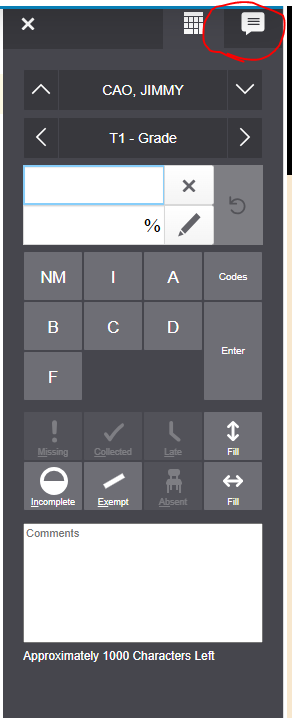
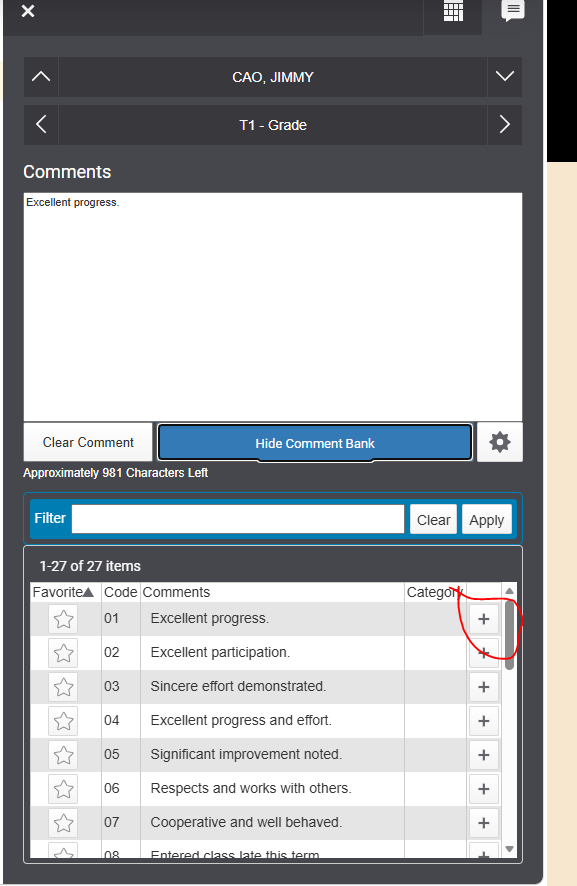
Then the comment window opens and you will select "Show Comment Bank" to get access to the comment bank.

Press the (+) plus sign to add the comment you would like to select for the student.
You will also see the option to remove a comment that could accidentally be selected.
Lastly, at the bottom of the page you should be able to apply the changes and save your progress.
The comment(s) is applying to one student for that specific Trimester.
Repeat this for the other students that will need comments.
That is all.
If you have any further questions feel free to submit a ticket at

